Keep SharePoint as your document store
Connect your existing SharePoint files to the client work in AccountKit, with underlying document permissions respected.
AccountKit + SharePoint
Keep your Microsoft document library connected to client work.

 SharePoint
What connects
Connect your existing SharePoint files to the client work in AccountKit, with underlying document permissions respected.
Use the SharePoint connection when bringing client documents into your AccountKit document-management workflow.
In practice
Start with a client whose documents your team knows well. Connect the document location, check the team’s access and confirm how those files support the work in AccountKit.
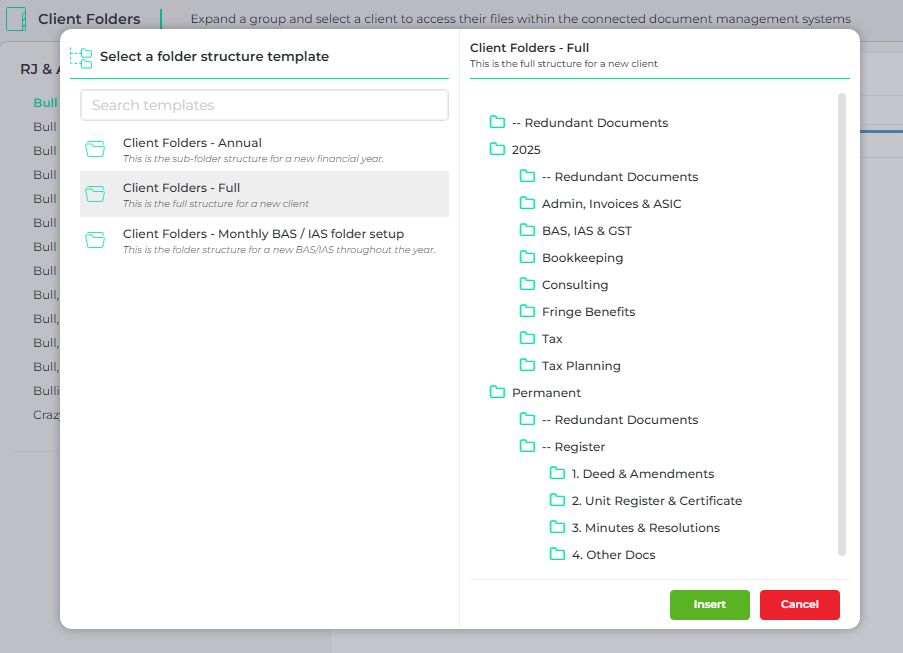
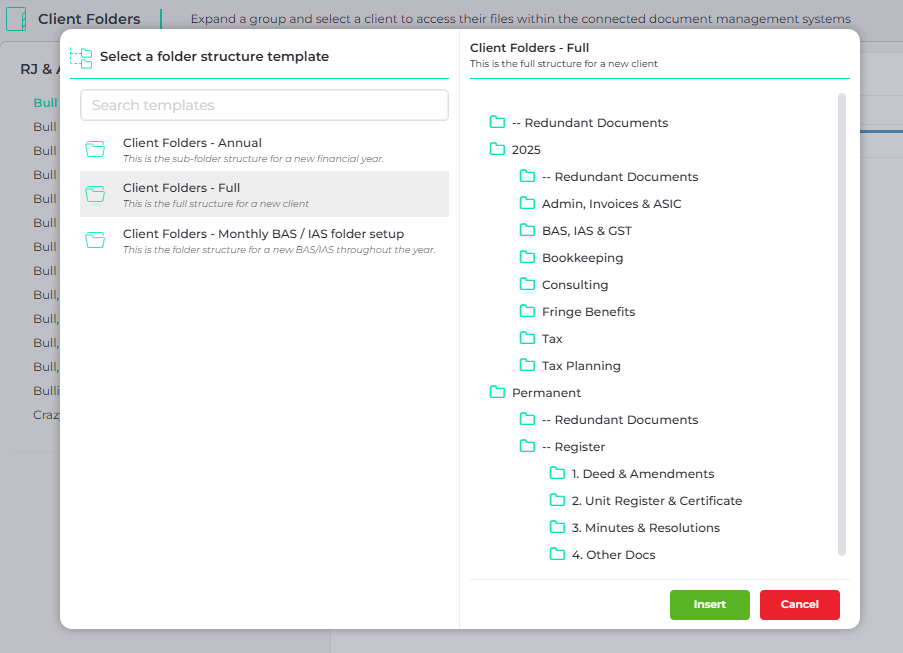
Client folder templates in AccountKit. Available features depend on your provider and plan.
Connection setup
Start with the accounts and permissions, then test the work your team needs to do.
Have the person who manages your SharePoint account confirm the access and permissions available for the connection.
Check your plan and connection requirements against the work you want SharePoint to support.
Connect the accounts with your administrator, test the intended workflow and confirm where the team should maintain the source record.
No. AccountKit’s document-management guide specifically explains that the connected DMS permissions still apply, including SharePoint restrictions.
Book an AccountKit demo and mention SharePoint. Bring a real example of the work you want to connect so the team can confirm the setup, supported actions and plan requirements for your firm.
The rest of your setup
Capture Outlook correspondence in AccountKit and send email using your own account, keeping conversations connected to the client and client group.
Explore integrationConnect your Microsoft cloud files to the client records that use them.
Explore integrationLaunch FuseSign signing requests from AccountKit’s document workflow, track progress and keep the signed document with the client’s files.
Explore integrationYour practice + SharePoint
Bring your SharePoint setup and a client workflow to an AccountKit demo. We’ll walk through the connection and the next steps for your team.